Watch Luminar IPTV on all your favorite devices.

Our IPTV services can be used on a wide variety of devices. If you can’t find your device, don’t worry. We support all devices and all apps, and we’re happy to help you.

Step-by-Step Installation

Our IPTV services are compatible with a wide range of devices. If you don’t see your device listed, don’t worry. We support all devices and apps, and we’re happy to assist you. Just contact us.

Install IPTV on your Android smartphone, box, and TV (using IPTV Smarters Player).

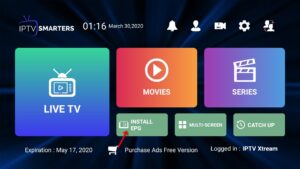
IPTV Smarters is one of the most user-friendly IPTV player apps, allowing you to enjoy Live TV, Video-on-Demand, series, media libraries, and the Multi-Screen feature on your Android devices (smartphones, Android boxes, Fire TV Stick, etc.). One of the most interesting features of IPTV Smarters is the media library. This feature is offered by very few apps; until now, it was exclusively available on MAG boxes. Additionally, there is the Multi-Screen feature, which lets you watch up to four channels simultaneously.

You can add IPTV channels to IPTV Smarters in two ways:

  • Setup via the Xtream Codes API.

  • Setup via Playlist.

Setting up IPTV Smarters via the Xtream Codes API

We recommend setting up via the Xtream Codes API, as this allows you to use the Catchup feature and you don’t need to add an EPG URL (it will be loaded automatically).

STEP 1:

First, download the IPTV Smarters app from the Google Play Store using this link:

https://play.google.com/store/apps/details?id=com.nst.iptvsmarterstvbox&hl=en_US
and install the app on your Android device.

STEP 2:

After downloading, open the app and click on “Add User”, then select “Login with Xtream Codes API”.

9436-IPTVSmarters-1

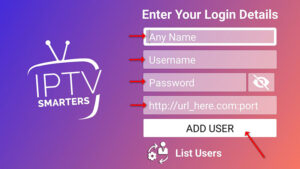
In this step, enter any name in the first field, for example, “IPTV Xtream”. In the second and third fields, enter the “Username” and “Password” from your M3U file, as well as the Server URL, which can also be found in your M3U file.

Now click “ADD USER” to proceed to the next section.

Wait a few seconds.

Now click on the “Live TV” icon, marked with a red arrow in the image.

Now you need to select the desired channel group and proceed to the next section.

Now you need to click on the channel name, and as the final step, double-click the small window to switch to full-screen mode.

To add EPG, you don’t need to enter an EPG URL. Simply click on “Install EPG.”

If you don’t have an Xtream Codes API, you can use an M3U URL and choose whether to load your playlist or a file URL.

STEP 1:

After downloading, open the app and click on “Add User”, then select “Login with Playlist”.

In this step, enter any name in the first field, for example, “IPTV Playlist”.
Select “M3U URL” and enter the M3U URL provided by your IPTV provider.

To add EPG, click on “Install EPG” and enter the EPG URL.

Now click on the “Live TV” icon, select the channel group, and then choose the channel you want to watch.

Although IPTV Smarters is listed on the Google Play Store and Apple App Store for Android and iOS mobile devices, it is not available on the Amazon Appstore. So, if you want to use it on your Fire TV Stick, you will need to install it manually (sideloading).

To install apps on your device, you must enable “Apps from Unknown Sources.” Let’s take care of this first before installing IPTV Smarters on your FireStick:

– On the home screen of your FireStick, you will find the menu bar at the top.

Select “Settings” from the menu bar.
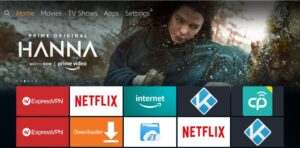
– In Settings, select My Fire TV.
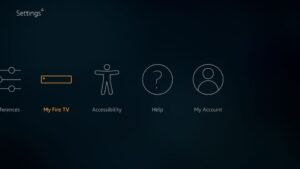
– When the following options appear on the next screen, click Developer Options.
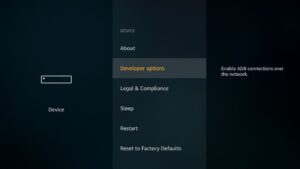
– Now check whether “Apps from Unknown Sources” is disabled or enabled.

Click on it if it is OFF.
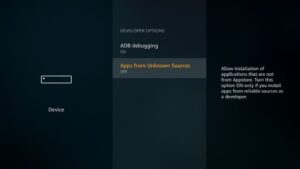
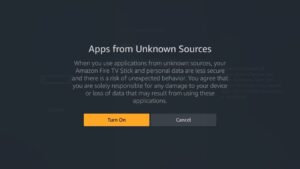
– A brief warning message will appear.

To enable the installation of apps from unknown sources, click “Turn On.”
You have now configured your FireStick settings to allow the installation of IPTV Smarters and other third-party apps. Follow these steps:

STEP 1:

First, install the Downloader app.

This app will help you install IPTV Smarters on your FireStick via sideloading (since browser downloads are not allowed).

STEP 2:

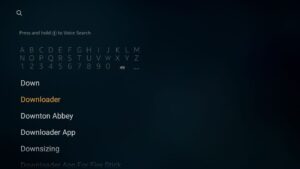
  • Highlight the Search option on the home screen of your Fire TV Stick.

  • Enter the name of the app (Downloader).

  • Click on the Downloader option when it appears in the search results.

  • On the next screen, select the Downloader icon, then download and install the app.
 

You can now open the Downloader app.
When you launch the app for the first time, a few messages will appear. Close them until the following screen appears.

On this screen, click on the URL text field on the right side (make sure the Home option is selected in the left menu), where it says “http://”.
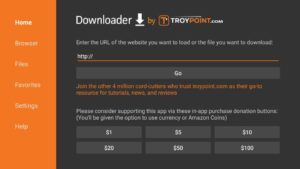
Now enter the following path into this field: https://www.firesticktricks.com/smarter

Note: You can also use the short version of the URL: firesticktricks.com/smarter.

Click GO.
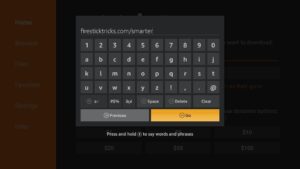
Wait one or two minutes for IPTV Smarters to download to your FireStick device.
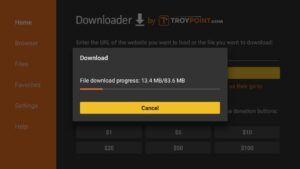
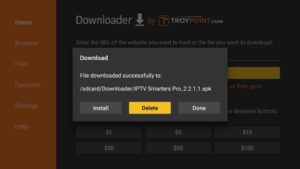
Once the download is complete, the Downloader app will open the APK file and the installation will begin.

Click Install.
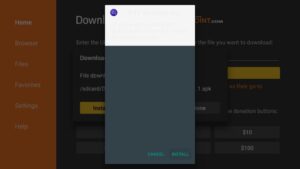
Wait until the installation is complete.
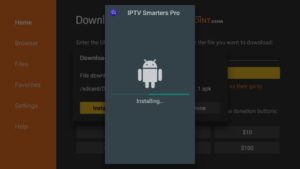
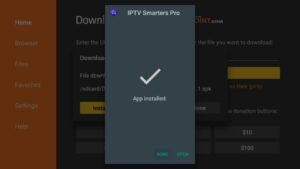
The installation is complete when you see the “App Installed” notification.

You can now click OPEN to start using IPTV Smarters.

We recommend selecting DONE so that you can first delete the APK file and free up space on your Fire TV.
If you clicked DONE above, you will return to the Downloader interface.

Click “Delete.”
Click “Delete” again.
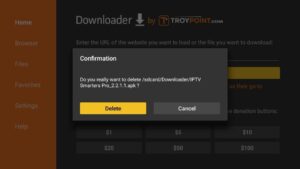
Great! You have now installed the IPTV Smarters app on your FireStick.

When you launch the IPTV Smarters app for the first time, the Terms of Use will appear as the first window. Scroll down and click “Accept.”

You can add IPTV channels to IPTV Smarters in two ways:

  • Setup via the Xtream Codes API.

  • Setup via Playlist.

Setting up IPTV Smarters via the Xtream Codes API

We recommend setting up via the Xtream Codes API, as this allows you to use the Catchup feature and you don’t need to add an EPG URL (it will be loaded automatically).

STEP 1:

After downloading, open the app and click “Add User”, then select “Login with Xtream Codes API.”
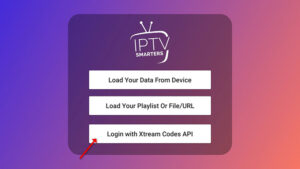
9436-IPTVSmarters-1

In this step, enter any name in the first field, for example, “IPTV Xtream.” In the second and third fields, enter the “Username” and “Password” from your M3U file, as well as the Server URL, which can also be found in your M3U file.

Now click “ADD USER” to proceed to the next section.
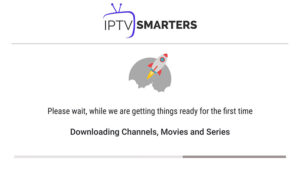
Wait a few seconds.
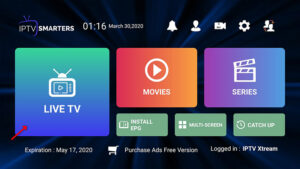
Now click on the “Live TV” icon, marked with a red arrow in the image.
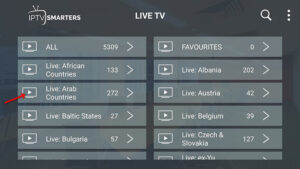
Now you need to select the desired channel group and proceed to the next section.
Now you need to click on the channel name, and as the final step, double-click the small window to switch to full-screen mode.
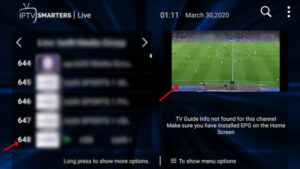
To add EPG, you don’t need to enter an EPG URL. Simply click on “Install EPG.”
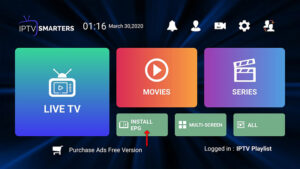
If you don’t have an Xtream Codes API, you can use an M3U URL and choose whether to load your playlist or a file URL.

STEP 1:

After downloading, open the app and click “Add User”, then select “Login with Playlist.”
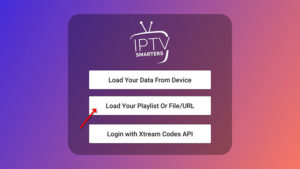
In this step, enter any name in the first field, for example, “IPTV Playlist.”
Select “M3U URL” and enter the M3U URL provided by your IPTV provider.
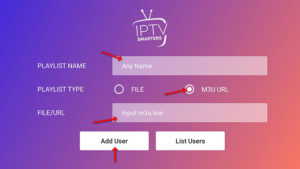
To add EPG, click on “Install EPG” and enter the EPG URL.
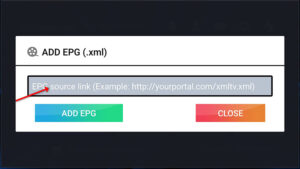
Now click on the “Live TV” icon, select the channel group, and then choose the channel you want to watch.

The Dreamlink T1 and T2 are devices that provide access to IPTV channels. They feature a user interface based on Stalker Middleware. This interface converts online channels into a menu, allowing you to easily select the channel you want.

These products make it easier to browse the numerous available channels and choose the ones that interest you the most. The interface also includes a web browser, a video player, and various other apps.

To add channels to your Dreamlink device, follow these steps:

STEP 1:

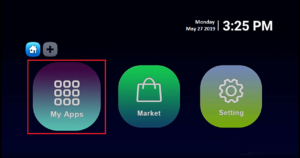
From the home screen, go to “My Apps.”

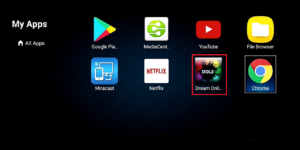
Select DreamOnline (DOL 2).
Note: If the DreamOnline (DOL 2) app is not in the “My Apps” folder, open the Play Store, search for DreamOnline (DOL 2), and install the app. It will then appear in the “My Apps” folder.

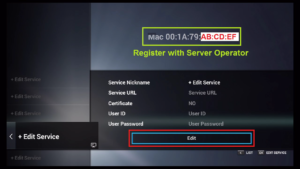
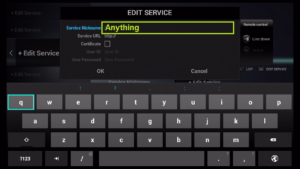
Now select “Edit Service” and then click “Edit.”
Important: Make sure you register (if required) with your correct MAC address on the server provider’s website.

Enter your service name (any name).

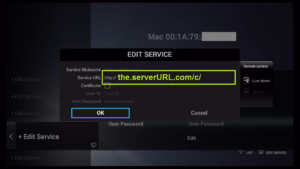
Enter the IPTV server URL (Portal URL) provided by your IPTV service provider.

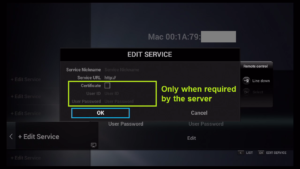
Entering a Username and Password is NOT required.

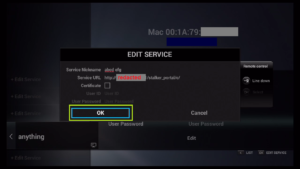
Click “OK.”

The connection to the IPTV server (using your registered details) will be established.

Connection successful! You will receive all channels linked to your account.


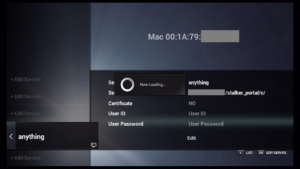
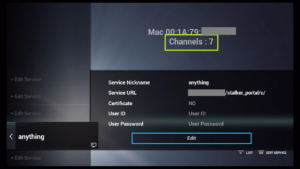
MAG boxes are among the most powerful streaming media players. IPTV users appreciate them for their speed, simplicity, and excellent streaming performance. The user interface is intuitive and responsive, channel switching is fast, and you get all the features you need to make the most of your IPTV service.

STEP 1:

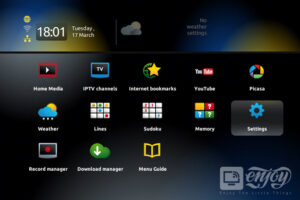
When the device boots up, the portal home screen will appear. Then click “Settings” and press the “SETUP/SET” button on the remote control.

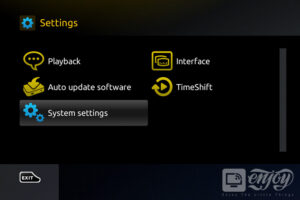
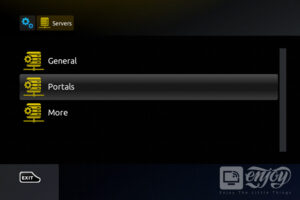
Then click “System Settings” and then “Servers.”

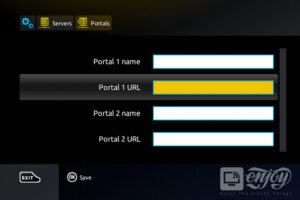
Select “Portals.”

In the “Portal 1 Name” field, enter: “IPTV.”
In the “Portal 1 URL” field, enter the portal address provided by your IPTV provider.

Once all the above steps are completed, press “OK.”
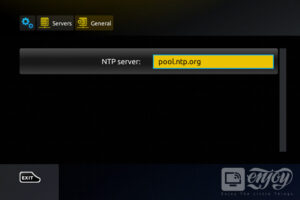
While the settings are being saved, press “EXIT” on the remote and select “General.”
In the “NTP Server” field, for North America, enter “pool.ntp.org” or “us.pool.ntp.org.”

Press “OK” to save the changes you made.

Once all the above steps are completed, press the “EXIT” button on the remote twice and restart the portal. You can now enjoy Live TV.


The GSE SMART IPTV app is one of the most popular streaming apps for IPTV. Since the app itself does not include any channels, you need an active M3U playlist to stream live TV channels and movies. Free M3U URLs can be found online and in forums. Alternatively, you can subscribe to a paid M3U service, which may be more reliable.

For this tutorial, you will need an active M3U playlist. Then download the GSE SMART IPTV app hier ist der Link zum App Store ).

STEP 1:

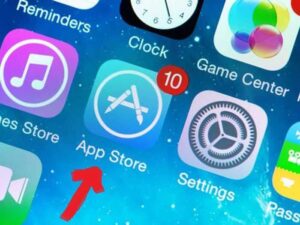
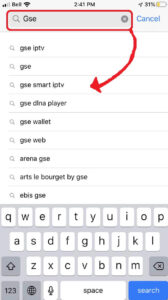
Search for and open the App Store on your iPhone, iPad, or Apple TV.

Next, search for the GSE SMART IPTV app.

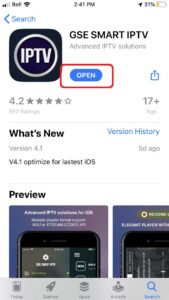
Select the GSE SMART IPTV app by droidvision. The app’s slogan is “Advanced IPTV Solutions.” The app size is 104.5 MB.

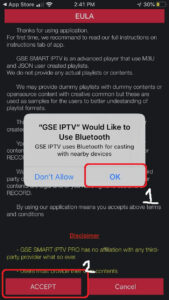
After installing the GSE app, open it and enable Bluetooth. This allows you to cast your screen from your iPhone or iPad directly to your TV via Google Chromecast.
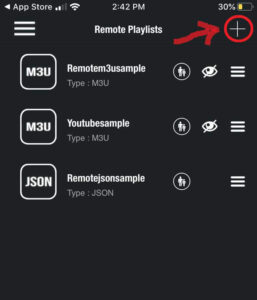
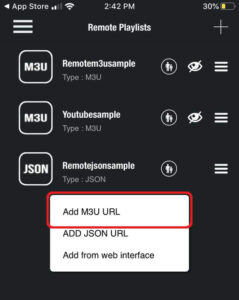
In the “Remote Playlist” section, you will see a plus (+) icon in the top right corner. Press this button. Alternatively, you can add your M3U playlist via the menu.

Here, you will be asked whether you want to add an M3U URL, a JSON URL, or the URL via the web interface. Please select the option “Add M3U URL.”

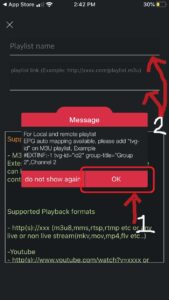
For the playlist name, you can enter any name, as it is only used as a reference for loading this specific URL from the playlist manager. The playlist link is the actual URL that we need to enter here.

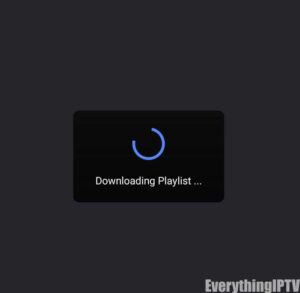
After selecting it, the playlist should be downloaded. If it is not, go back to the Playlist Manager (see Step 5). There, the M3U URL file you just uploaded should appear. Tap on it to load the created playlist.

You can confirm a successful installation when the different channel groups are displayed. The GSE SMART IPTV app has been successfully configured, and you can now start streaming!


Setup guide for Samsung & LG Smart TVs

Most IPTV services use the media control app DuplexPlay. DuplexPlay offers a 7-day free trial. After that, you can support the app for a small fee, for example, $0.99 for 6 months or $1.99 for 12 months.

Download DuplexPlay on your Smart TV:

  • Go to your TV’s App Store.

  • Search for DuplexPlay.

  • Install DuplexPlay and open the app.

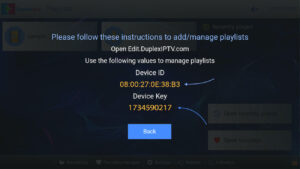
  • You will now see your Device ID and Device Key on your TV screen.

STEP 1: Note down your Device ID and Device Key.

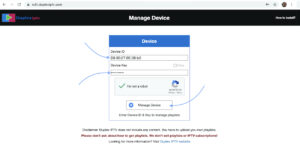
After installing the app, open it. Your Device ID and Device Key will be displayed (you can also find them under the Activation tab).

Navigate to edit.duplexplay.com  and enter the Device ID and Device Key that you noted in STEP 1. Then click “Manage Device.”

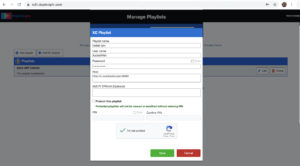
You can add a playlist either via an M3U link or through an Xtream connection. We recommend using the XC Playlist (Xtream Codes API) connection.

To do this, enter your Xtream Codes API credentials provided by your IPTV provider. If you do not yet have an IPTV subscription, click here.

  • Playlist Name: You can give your playlist any name.

  • Enter your Username, Password, and Host (the server URL for the Xtream Codes connection).

  • Complete the Captcha and click “Save.”

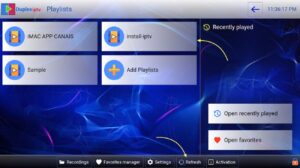
Then return to the DuplexPlay app and select “Refresh” to reload the playlists. The name of the playlist should now be displayed.


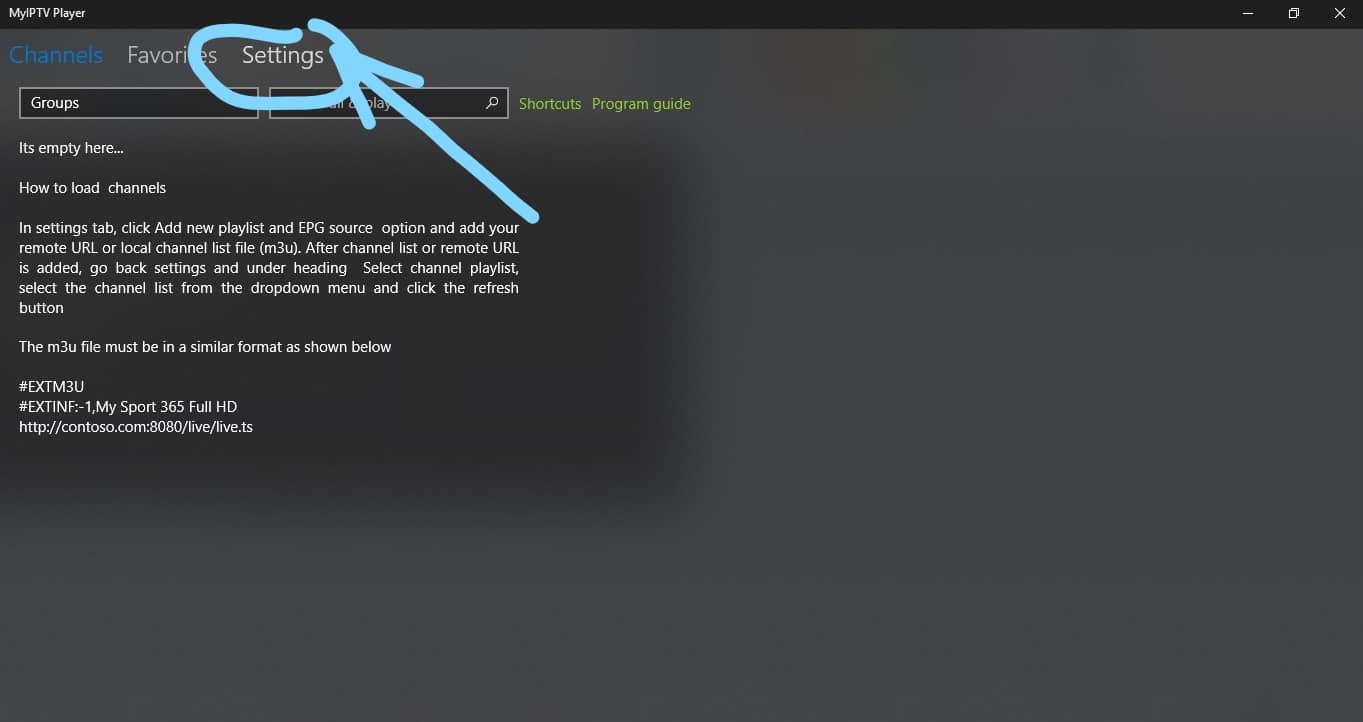
To set up IPTV on MyIPTV Player for PC, you first need to download and install the software. If you haven’t done so already, you can download the app using this link:  https://www.microsoft.com/en-us/p/myiptv-player/9pjj2nmbf0tr?activetab=pivot:overviewtab

STEP 1:

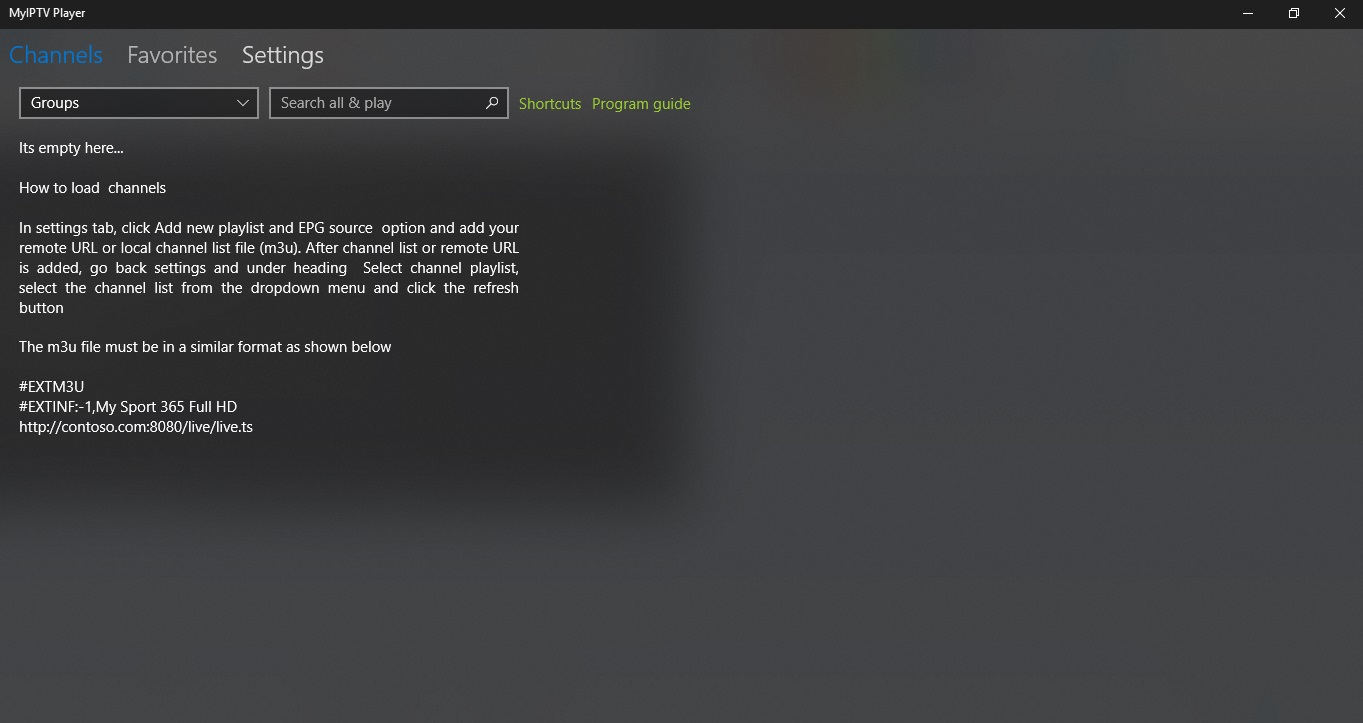
After downloading and installing the app, open it. You will then be greeted with a screen like the one shown below.

Now select “Settings” at the top of the screen.

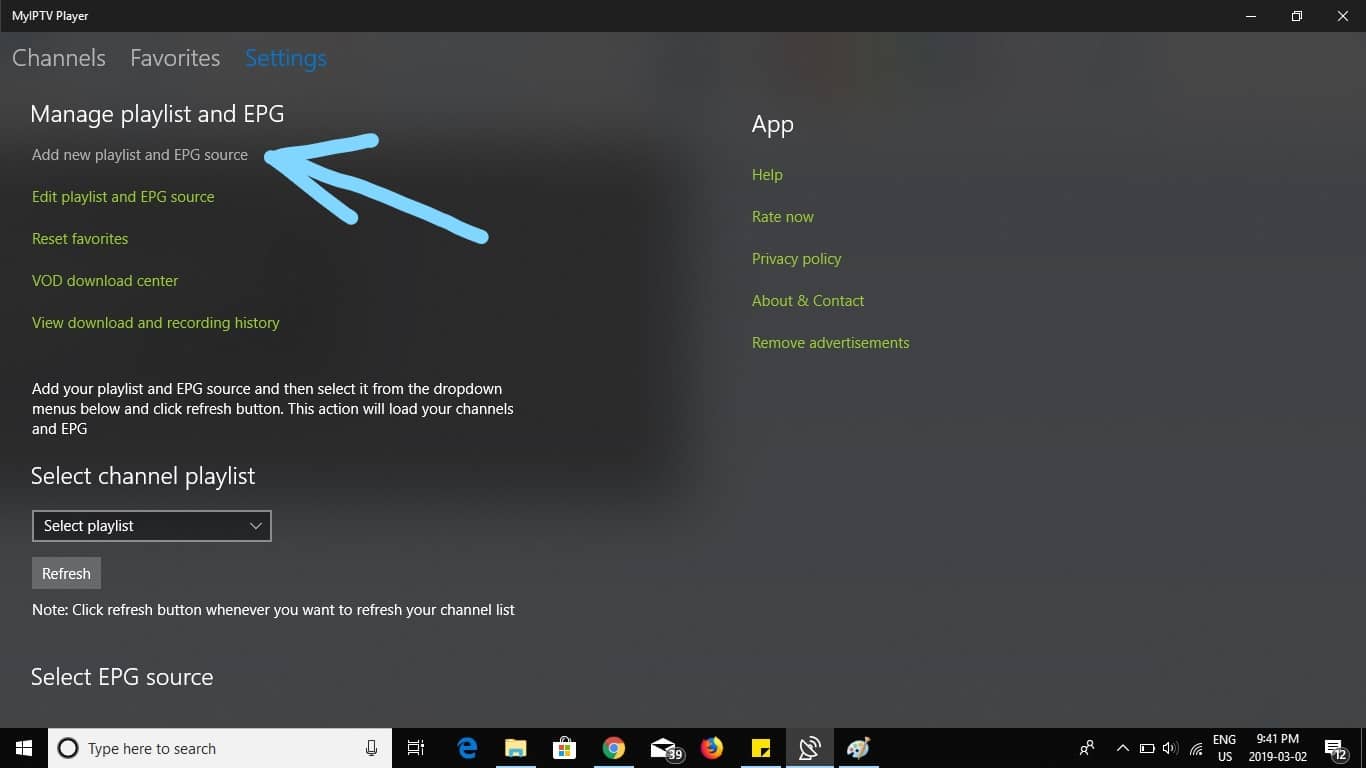
Select “Add new playlist and EPG source.”

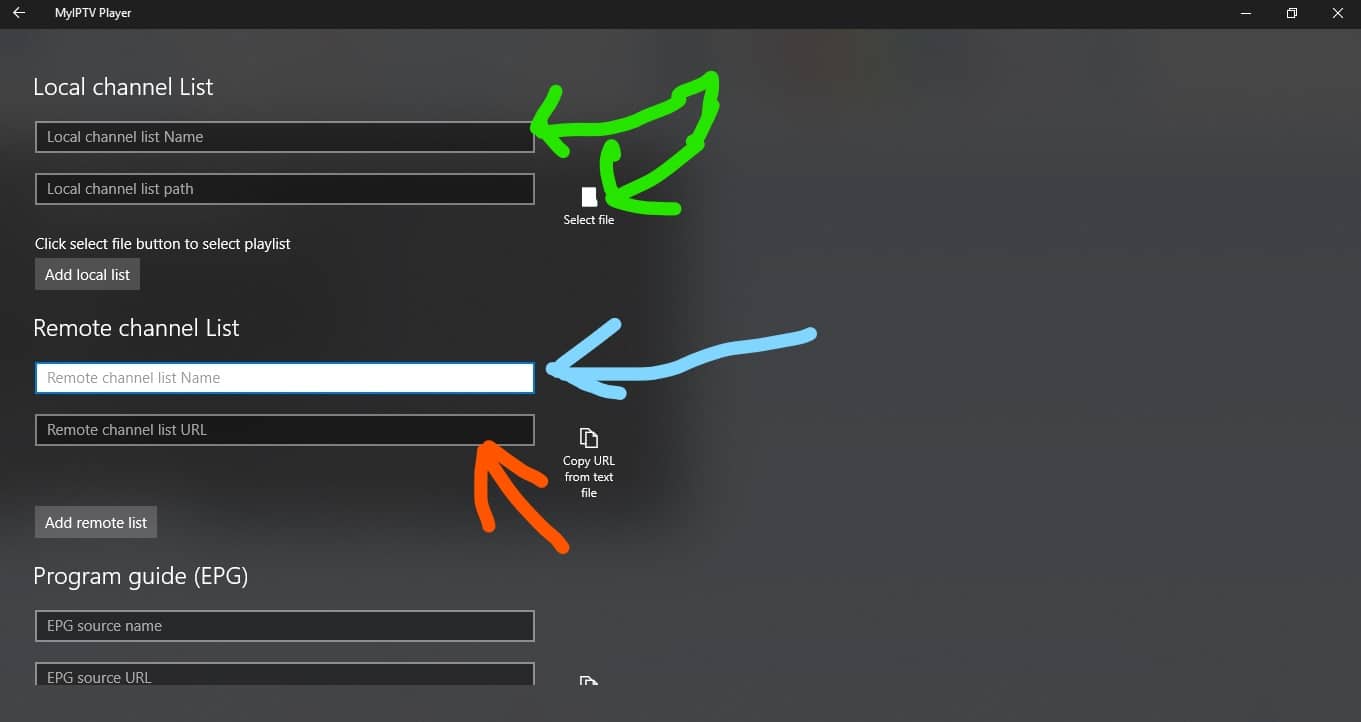
At the blue arrow, enter a name for your playlist, and at the orange arrow, enter your provider’s M3U playlist URL.

(Optional) If you have downloaded the playlist to your PC, select it using the green arrow; otherwise, skip this step.

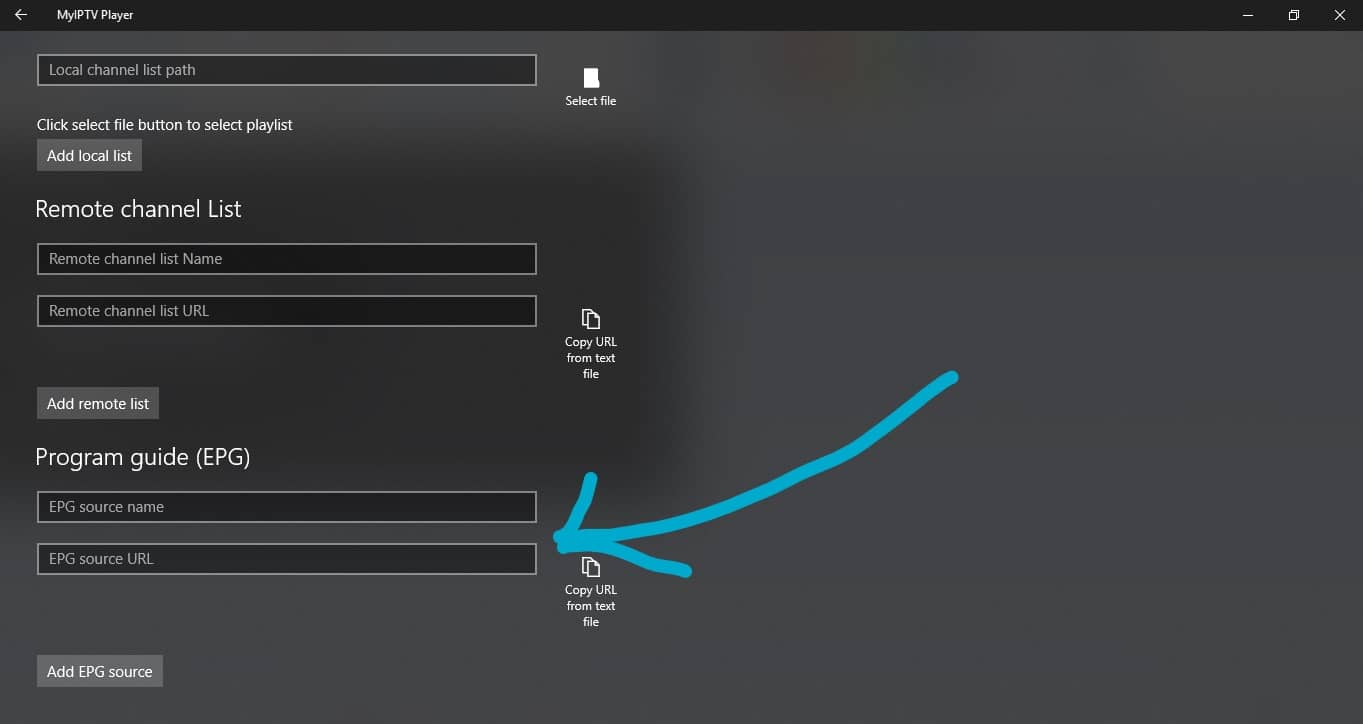
Scroll down to the “Program Guide” section and enter any name for the source. Then enter your provider’s EPG source URL.

Go back by tapping the arrow in the top left corner of the screen.

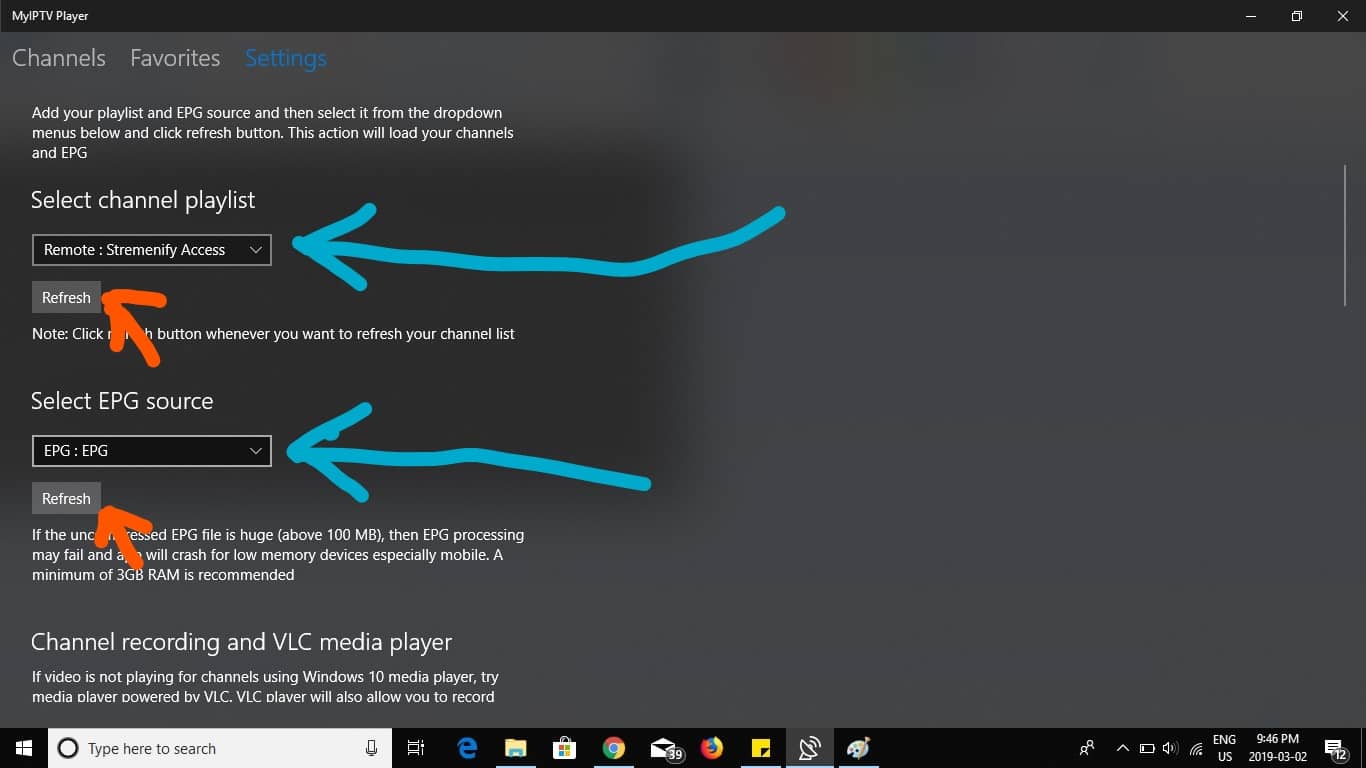
Select the channel playlist you created by opening the dropdown menu at the blue arrow.

Select the EPG source you created by opening the dropdown menu at the blue arrow.

Use the buttons at the orange arrows to refresh the channel playlist and EPG source.

You can select the channels at the top left of the screen.

In the “Channels” dropdown menu, choose your category.

Nachdem Sie Ihre Kategorie ausgewählt haben, sollten Ihre Kanäle geladen werden.

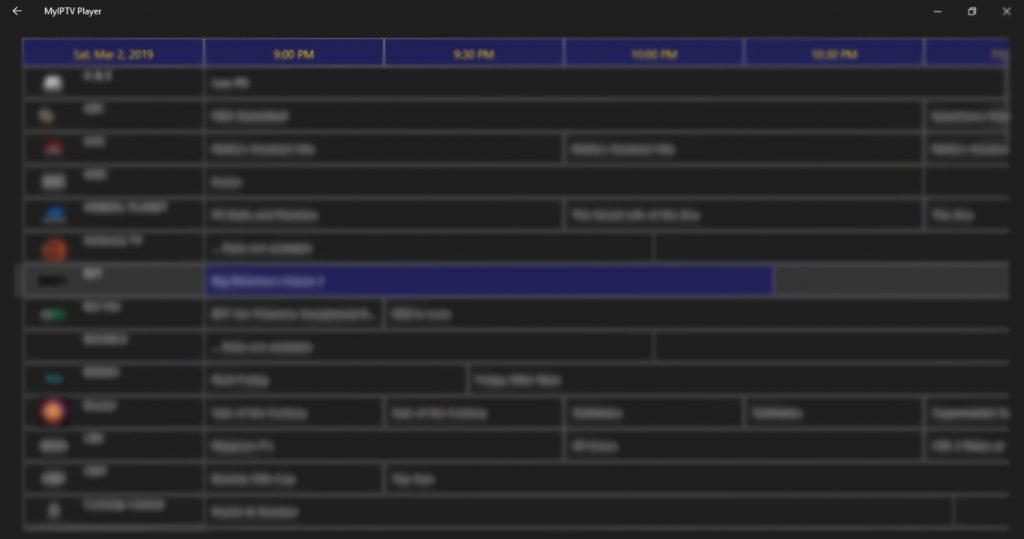
Select “Program Guide” to view the EPG.


In fact, these IPTV boxes are currently very popular in the UK and other parts of the world, and I suspect that’s why you have one at home! We assume you are here because you want to learn how to set up Enigma2 or Zgemma IPTV, which works the same on all devices.

To add channels to your Enigma2 / Dreambox / Vu+ device, follow these steps:

STEP 1:

Open your Enigma2 and retrieve your IP address.

Go to Settings / Setup / System / Network Devices / Adapter Settings.

Find your IP address; it starts with 192.168…

STEP 2:

On your Windows PC, download the Putty software.

Putty download URL:

https://the.earth.li/~sgtatham/putty/latest/x86/putty.exe

STEP 3:

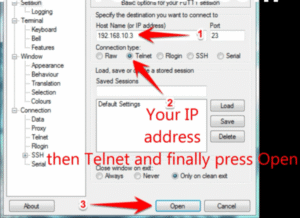
Open Putty and follow these steps.

Enter the IP address of your Enigma (the same IP address from Step 1).
Set Port to 23, Connection Type to Telnet.
Click “Open.”

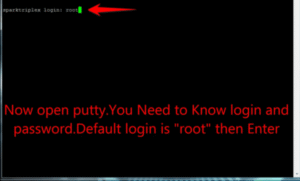
Your default username and password are both root.

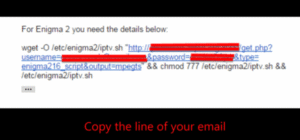
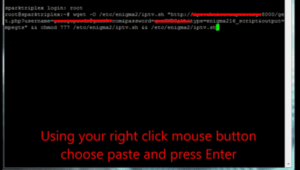
Copy your URL line (you will receive this after you have purchased your subscription).

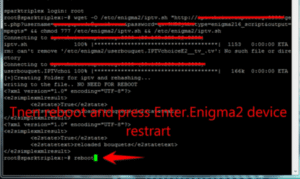
Right-click and press Enter after entering your line.

Type “reboot,” and your device will restart.

Now locate the IPTV folder; all IPTV channels are stored in your IPTV folder.


FormulerZ boxes are among the best devices for IPTV.
Their biggest advantage is the support for both MAC-based portal systems and M3U-based playlists.

FormulerZ8 is the latest version of Formuler boxes with the MYTV Online 2 app, which supports 4K Ultra HD streaming.
In this tutorial, we will show you how to receive IPTV channels on your MYTV Online 2 account on FormulerZ8.

This setup guide can be used for all models of Formuler devices/boxes:

STEP 1:

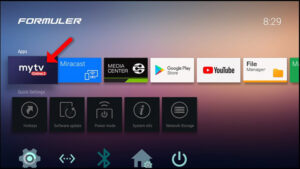
Open the exclusive “MYTV Online 2” app to watch IPTV on Formuler receivers.
If you don’t have this app installed on your device yet, you can download it from the Google Play Store.

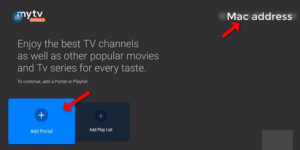
You can find the MAC address of your box at the top right of this page.
Please note that you need to provide this MAC address to your IPTV provider.

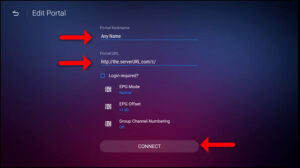
Here you will see two options. Select “Add Portal” to set up the device as a MAC-based device, similar to MAG boxes.

Enter a portal name (e.g., MYIPTV).
Enter the IPTV portal URL provided by your IPTV provider, and click “CONNECT.” You can request the portal URL from your IPTV provider.

Connection successful! You will receive all channels associated with your subscription.
Please note that this may take some time.

 
  1. You need to access Enigma2 to obtain the address.
  2. Navigate to Settings → Setup → System → Network Devices → Adapter Settings. There, you can copy the IP address.
  3. Return to your PC and download the Putty software.
    Now open PUTTY and follow the steps below:
  4. Enter the copied IP address and Port 23.
  5. Select Telnet as the connection type.
  6. Click “Open.”
  7. The default password should be set to root.
  8. Copy your URL line.
  9. Right-click and then press Enter.
  10. Type “reboot” on the screen and press Enter. This will restart the system.
  1. Here is the setup guide for Openbox:
  2. Open an internet browser.
  3. Enter the M3U URL.
  4. You will be prompted to save a file.
  5. Click “Save As” and give it any name.
  6. Now you can copy the file to a USB stick. Then connect the USB stick to your Openbox.
  7. Take the remote control and follow these steps:
  8. Go to the Menu
  9. Navigate to Local Network Settings
  10. Go to the Network App
  11. Go to IPTV Palace
  12. Press the yellow button to read from the USB drive
  13. Openbox will now display the message “Successful.”
  14. If you still encounter issues, simply restart your Wi-Fi router and Openbox.